Multiple Arduino Profile Upload
Learn how to upload multiple profiles at once if you use Arduino devices not SimHub pre-configured devices.
- 1
Load Profiles
Ensure you have all the profiles loaded within your SimHub LED Profile Manager list.
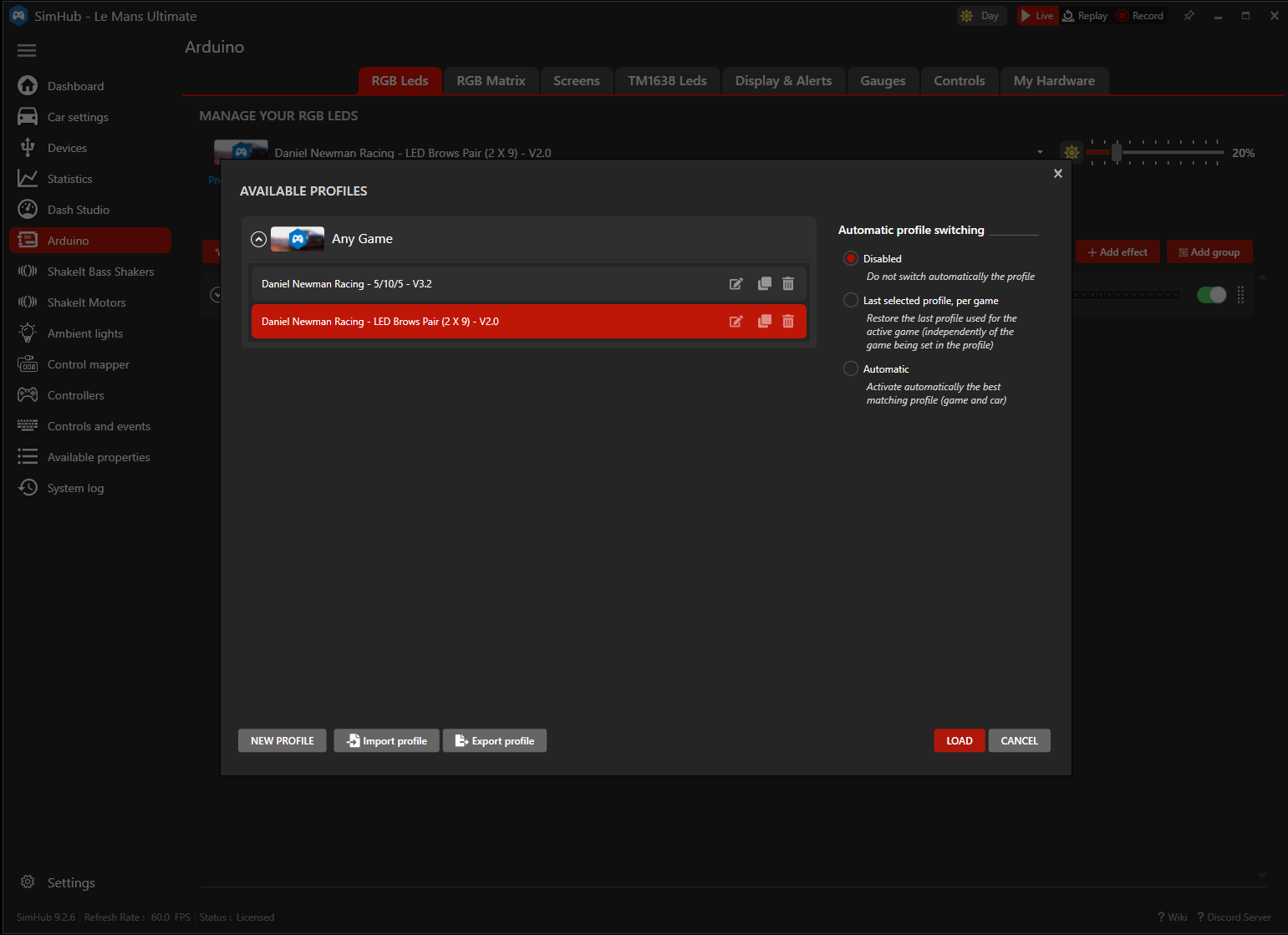
- 2
Order Your Devices
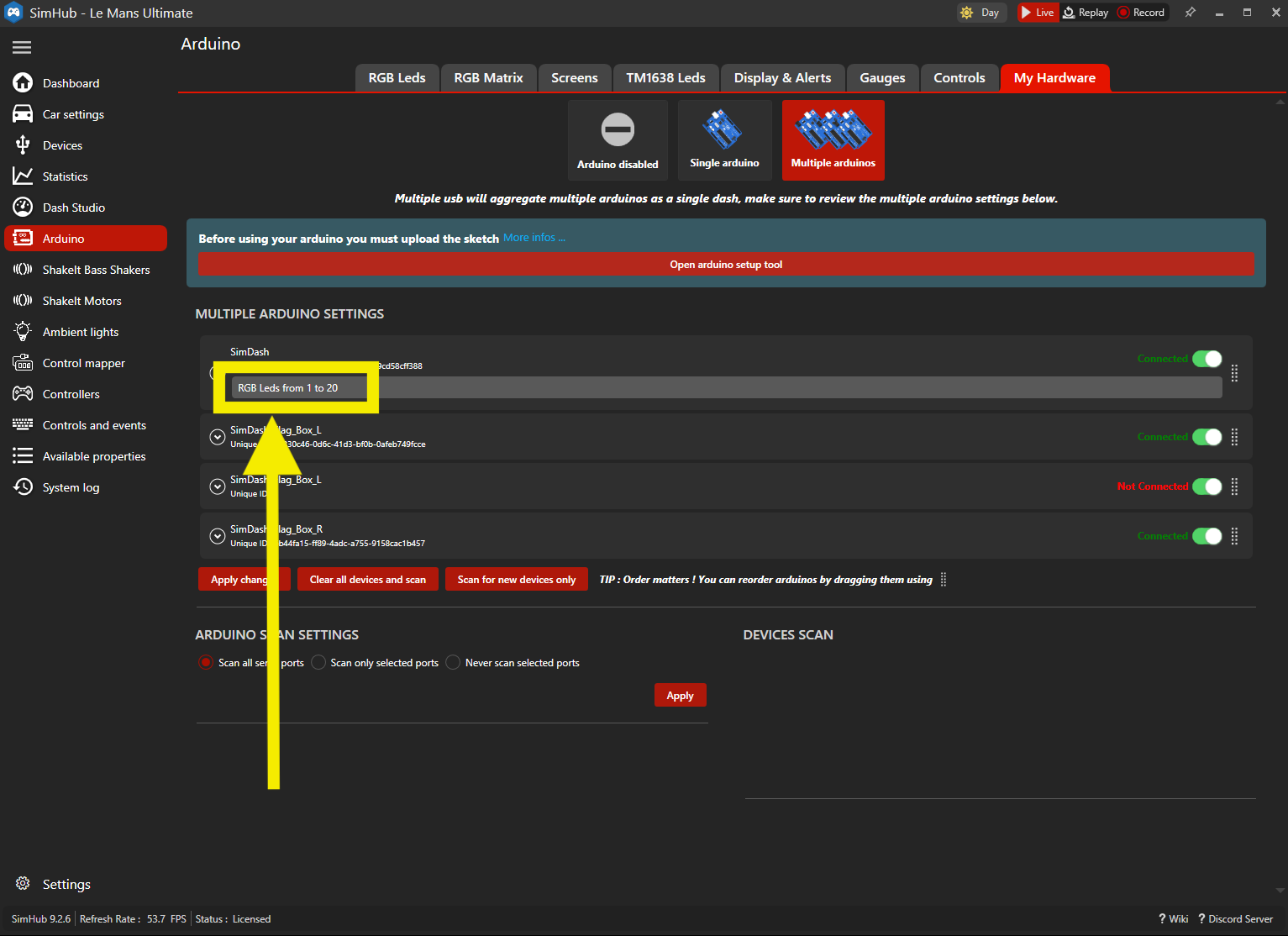
In the My Hardware tab of Arduino, ensure the order of your devices matches the order of the LED profiles you wish to use (typically always ensure your DDU/Wheel is the top device). Take note of the RGB LEDs to and from. In the example shown here 1 to 20, this means the devices below it would start at 21 onwards etc.
- 3
Navigate to RGB LEDs
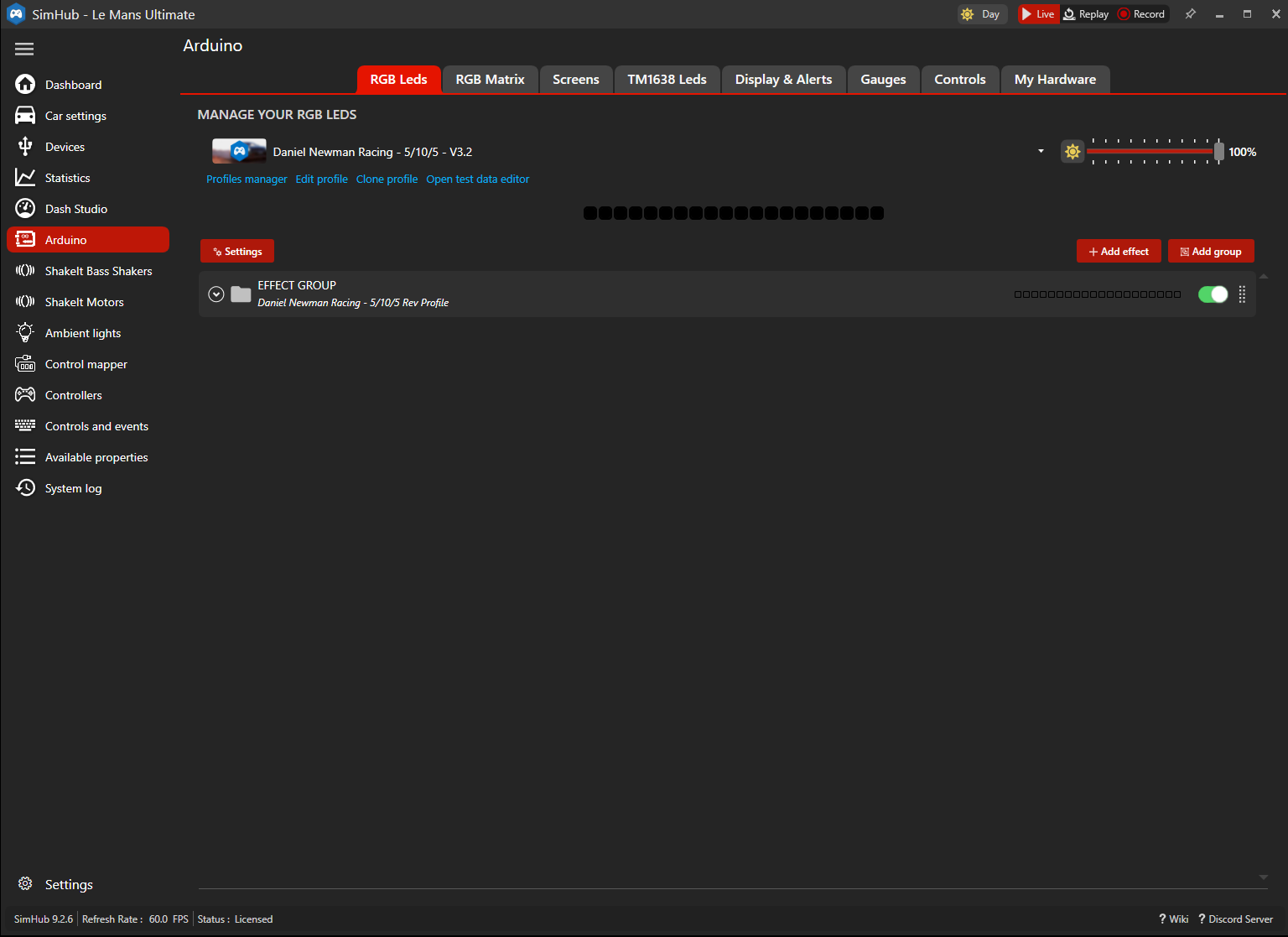
Navigate back to the RGB LEDs tab.
- 4
Add Include Profile Effect
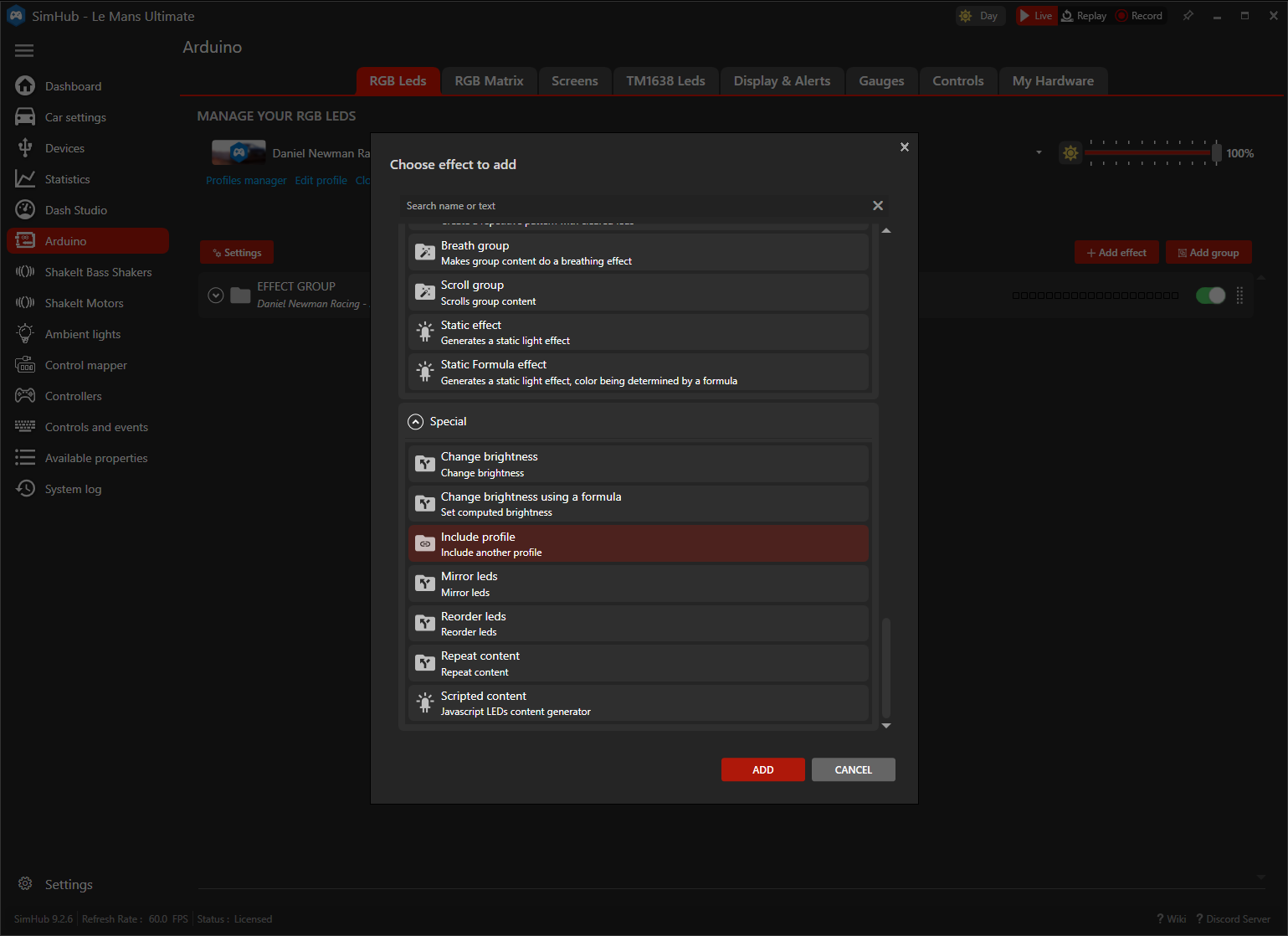
Press Add Effect and scroll down the list until you find 'Include Profile' - then press add.
- 5
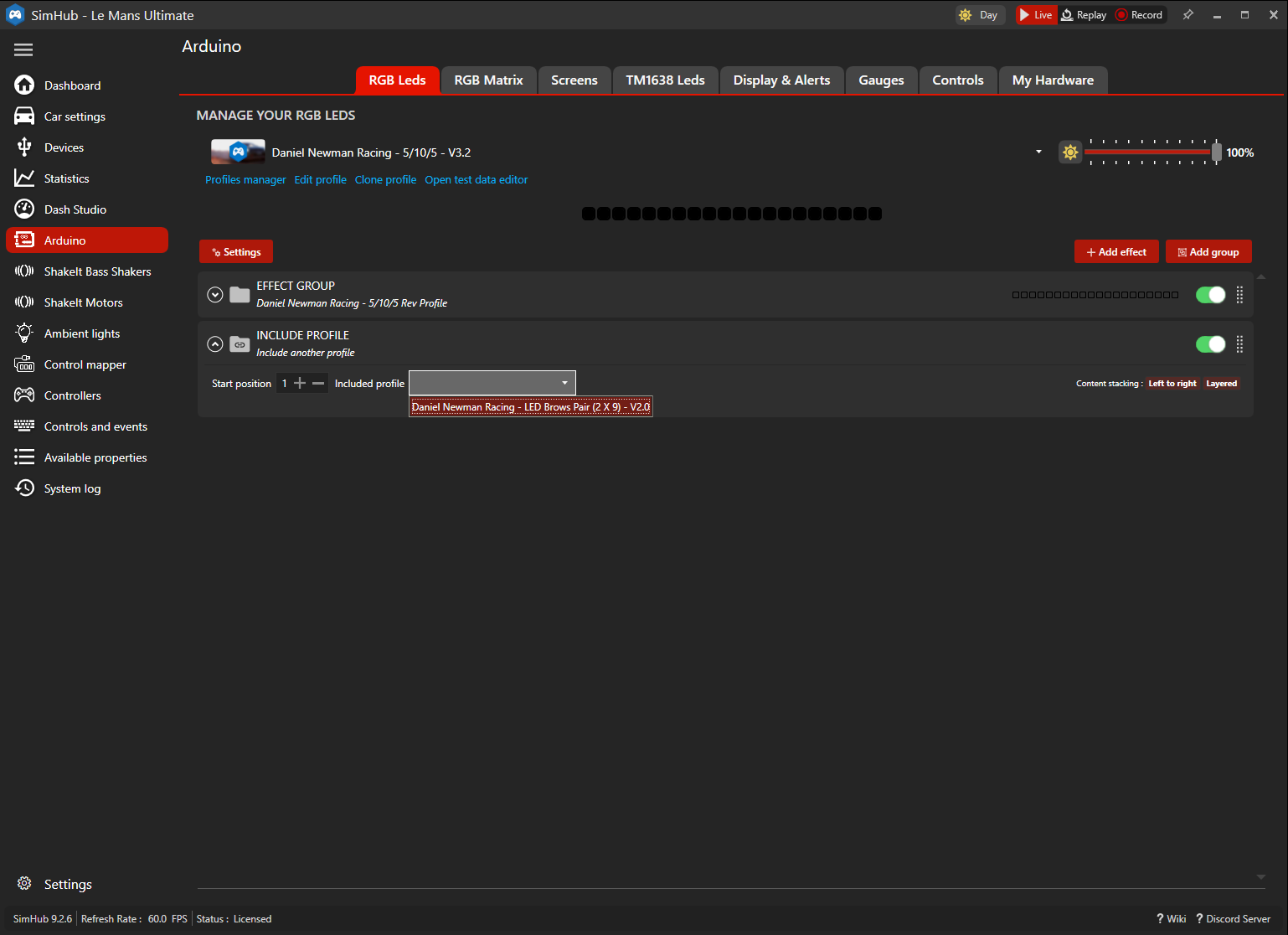
Select Profile
In the 'Include Profile' effect, select your desired profile for your additional device in the dropdown list.
- 6
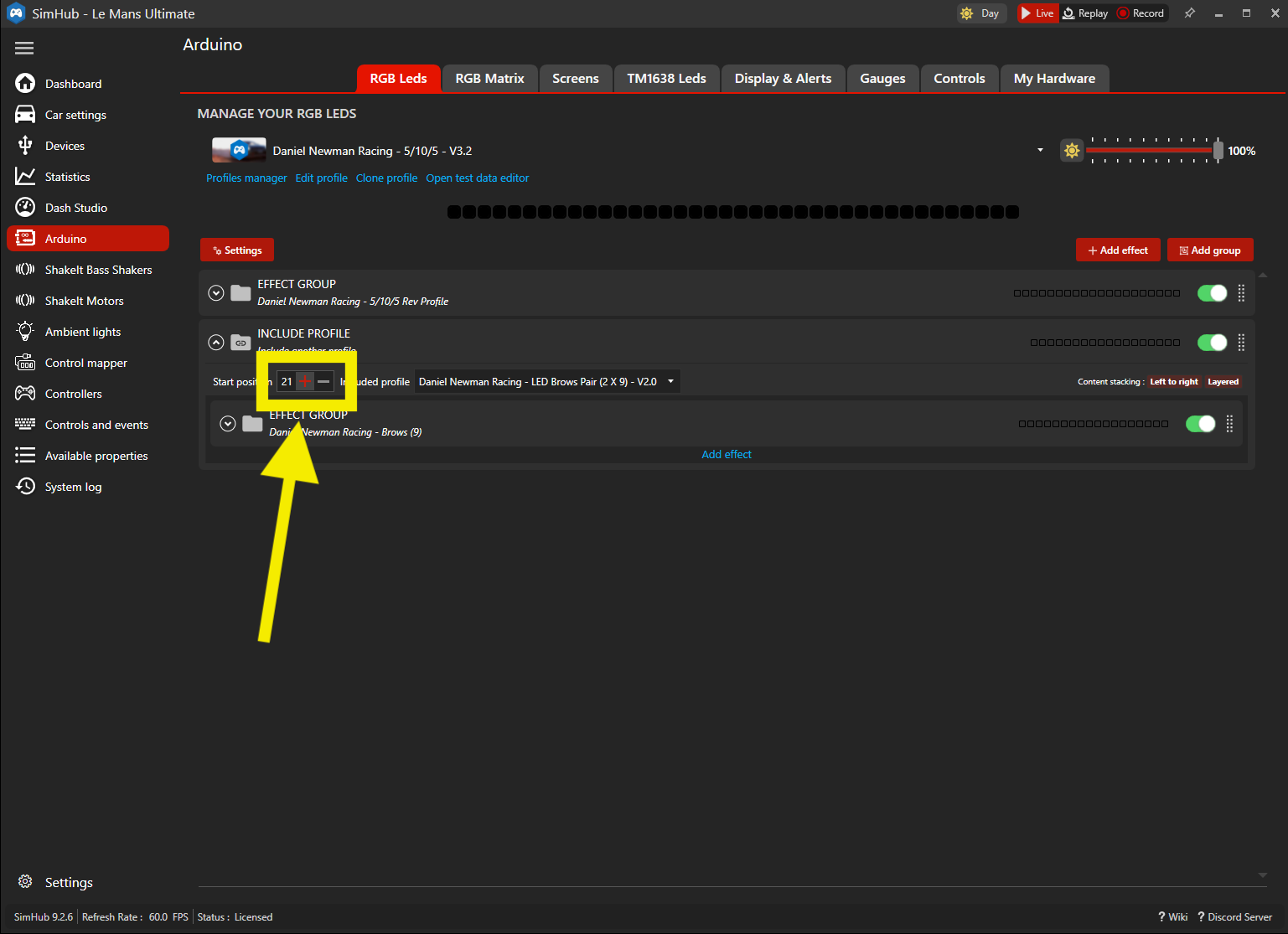
Set Start Position
Ensure the start position for this 'Include Profile' effect is the same number as the first number of the start point as shown in your My Hardware page. The example shown would ensure my DDU profile starts at position 1, and as it is a 5-10-5 profile (20 LEDs total), my 'Include Profile' effect below it for brows would now start at position 21.
- 7
Repeat for Additional Devices
REPEAT this tutorial for every additional device you wish to add. You can add an unlimited number of devices to your RGB LEDs using this method.
Related Content
Still need help?
Open a ticket and we'll get back to you with the article context attached.